Trade OTC and Request Quotes
Find an offer, set your own rate, or request quotes from MetaVault curators.
Open OTC in the Spectra app and connect your wallet. For an introduction, see OTC trading and quote requests.
Take an offer
- Choose PT or YT and the network. Use Offer, Market, With and the minimum size filter to narrow the book.
- Open an offer. The book's Buy or Sell label describes your action as the taker: Buy PT means the maker is selling PT to you.
- Check the market, maturity, rate, asset you pay and asset you receive. Review the maximum payment, which includes the displayed buffer for changes while your transaction is pending.
- Approve the payment token if prompted, then confirm the fill in your wallet.
- Wait for confirmation and check your balances.
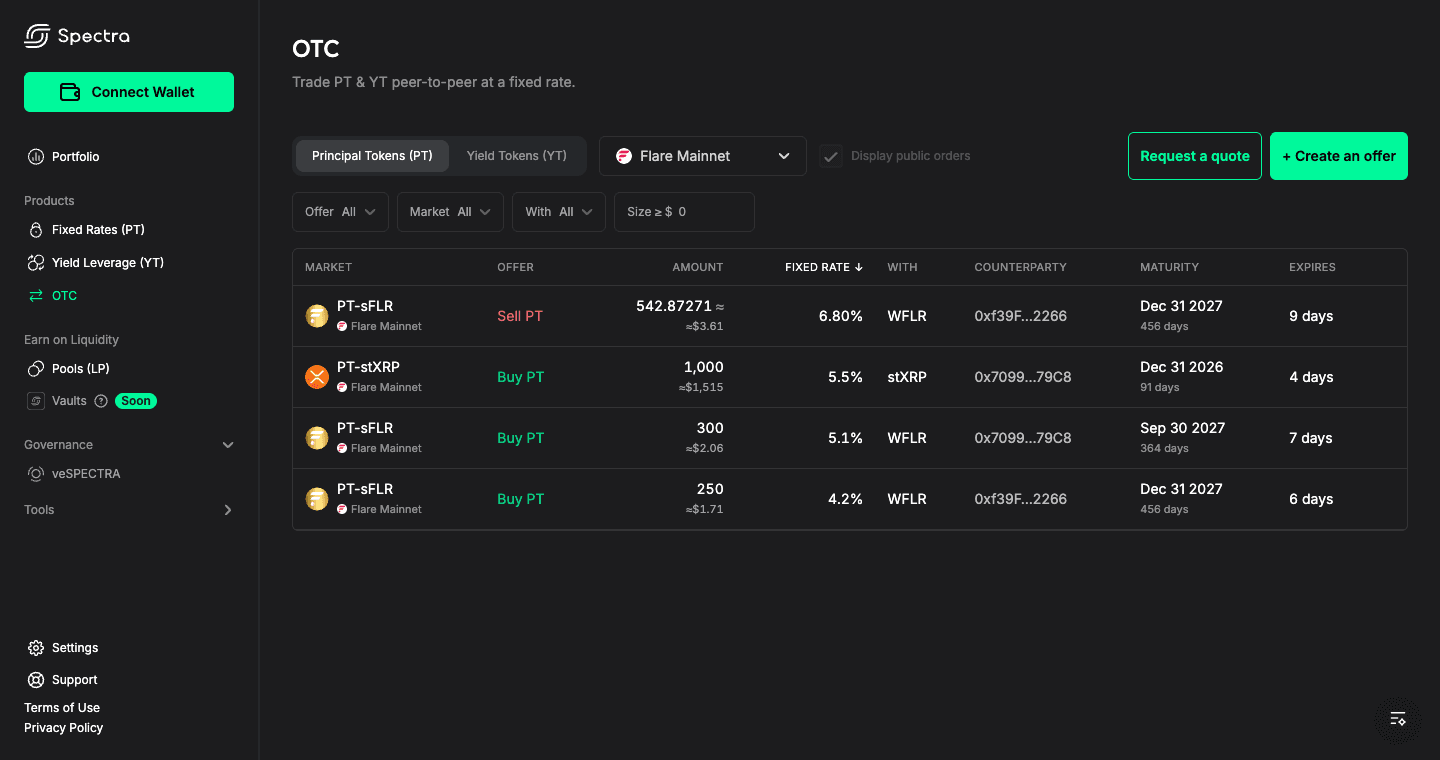
Each offer fills in full; you cannot take only part of it. The app refreshes the quote before sending. If the payment exceeds your accepted maximum, or the offer is no longer available, close and reopen it to review before trying again.
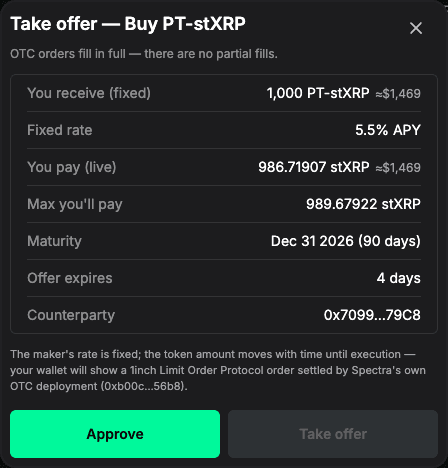
Create an offer
- Select + Create an offer, choose PT or YT, then Create an offer.
- Select a market, buy or sell, and the settlement token: underlying or IBT.
- Enter the amount you will send. You sell (fixed) is a PT/YT amount; You spend (fixed) is the underlying or IBT amount for a buy offer. You must hold enough of that token to publish.
- Set the Fixed rate (implied APY) and the offer's expiry. Check Output now to see the amount you would receive at the current block. PT rates can be 0% or higher; YT rates must be above 0%.
- Optionally select Restrict to specific counterparties and add the addresses allowed to fill.
- Approve the outgoing token if needed, then select Sign & publish offer. Successful publication returns you to the OTC book.
Signing and publishing from a regular wallet costs no gas. Token approval is an onchain transaction and may cost gas. Your wallet may call the signature 1inch Limit Order Protocol; check that its network and settlement address match the Spectra OTC offer you reviewed.
Your tokens stay in your wallet until a fill. Keep enough balance and allowance to cover your live offers. An executable offer can be filled without another confirmation from you.
“Private” restricts who can fill an offer. It does not make the terms or the recipient list confidential. When offering to a MetaVault, use its Safe address on the trade's network, not the curator's personal wallet.
If the market does not exist, Deploy a PT creates a PT/YT pair for an ERC-4626 IBT and a maturity. Deployment costs gas and creates no AMM pool or liquidity. Verify the IBT address and yield source before using it.
Request quotes from curators
Use Request a quote when you want MetaVault curators to propose a rate.
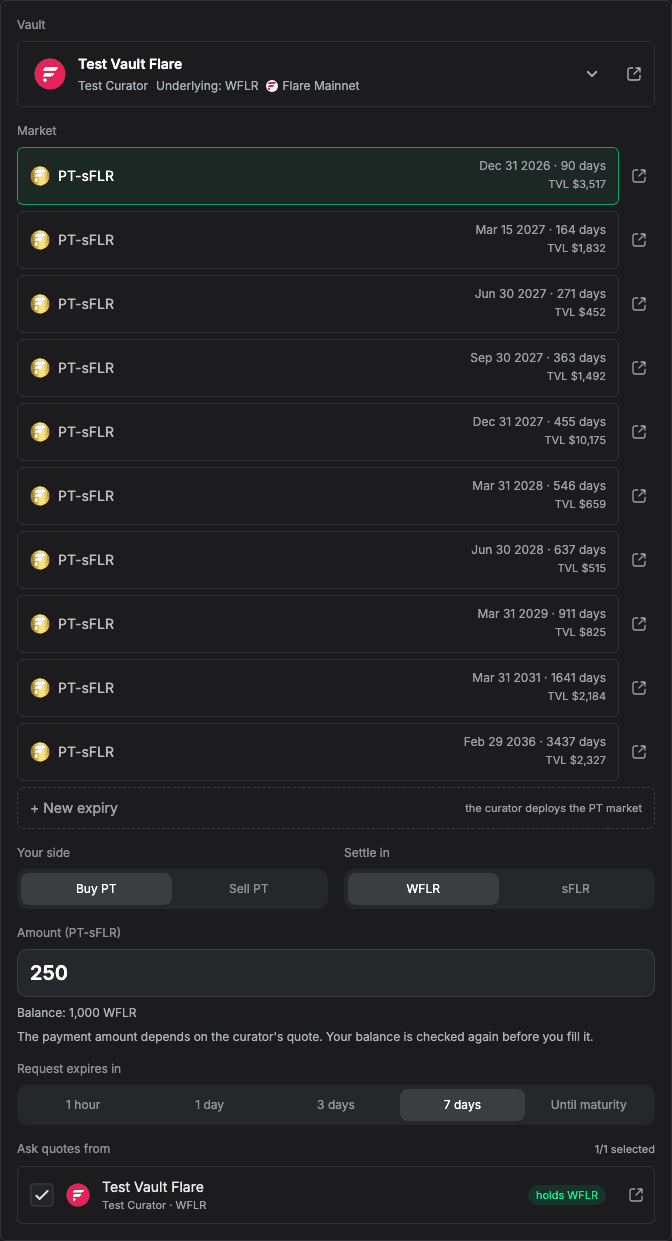
- Choose PT or YT, then a vault. Check its curator, underlying asset and network; use the vault link to review it.
- Select an existing market or New expiry. For a new expiry, a responding curator must deploy the market before quoting it. Check the actual maturity on the response; it can be up to a day later than requested.
- Choose buy or sell, enter the amount in PT or YT units, and select underlying or IBT for settlement.
- Set Request expires in. The chosen vault is selected under Ask quotes from; select any additional recipients explicitly.
- Review and sign the request. This is a gas-free message, not a trade or token approval.
To request a sale, hold the full PT/YT quantity in an existing market. To request a purchase, hold a positive balance of the settlement token; the actual payment depends on the response and is checked again when you fill.
Return to My quote requests on the OTC page. Each curator can leave the request pending, decline it or respond with a private offer. There is no guarantee that a curator will respond.
Review each response's actual amounts, rate and expiry, then select Fill to use the same approval and confirmation flow as any other offer. Requests use a PT/YT quantity, but response offers still fix the maker's outgoing leg; the live amount on the other leg can change.
You can withdraw an open request with a wallet signature. Withdrawing or letting the request expire does not cancel offers already signed in response. Filling one response does not cancel the others either.
Manage your offers
Find offers you created under My OTC orders.
| Status | What it means |
|---|---|
| Open | The offer is available, subject to the checks at execution. |
| Underfunded | Balance or allowance is too low. Topping up can make it fillable again. |
| Status unavailable | Live status could not be read. Refresh before acting. |
| Expired / Matured | The offer's deadline or the market's maturity has passed. |
| Filled / cancelled | The offer has been invalidated onchain; this status alone does not distinguish why. |
To withdraw an offer, use its cancel button and confirm the onchain transaction. Wait for confirmation: the offer could still fill before cancellation executes. Hiding an offer or moving its tokens does not cancel the signature. To change signed terms, cancel the old offer and create a new one.
The usual PT/YT and yield-source risks still apply. A quoted APY, private recipient list or factory-deployed market is not an endorsement of the asset.