Markets and Market Pages
Find a market, read its page and choose where to trade, provide liquidity or manage a position.
Markets lists every Spectra market. Each market has one page where you buy and sell PT and YT, provide liquidity, tokenize and follow your position.
Find a market
- Select Markets in the top bar, or press ⌘K (Ctrl+K on Windows and Linux) and type an asset, market or vault.
- Narrow the list with Search markets, Network, Asset, Protocol or a category such as Stables or Limit order rewards.
- Open a group to see its maturities. Markets that share an underlying asset are grouped; Group and Sort change the layout.
- Select a market to open its page on Fixed Yield. To start from another strategy, hover the row's Fixed APY, Yield leverage or LP APY figure and choose Fix, Leverage or Add LP.
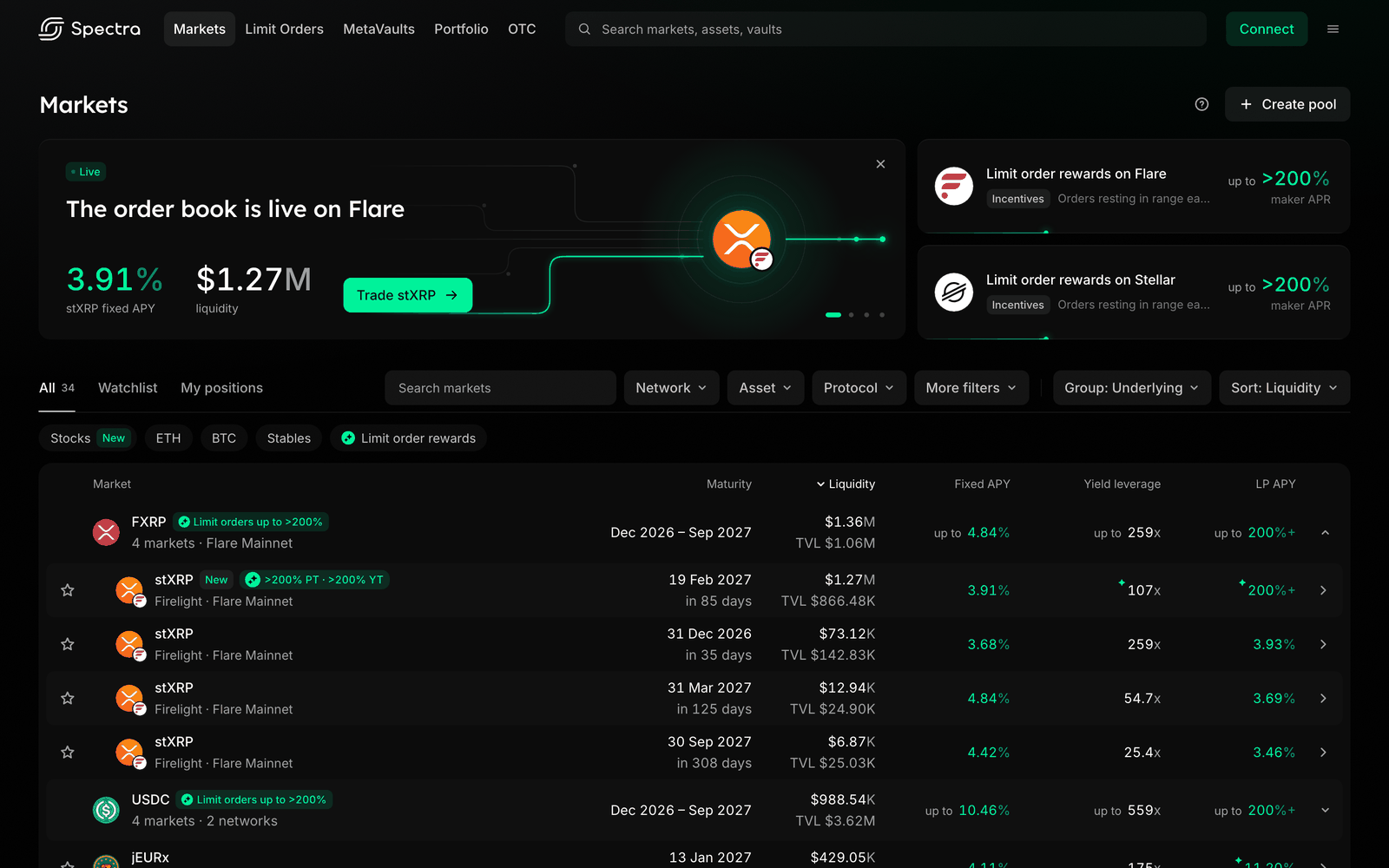
More filters sets a minimum liquidity or fixed APY, and can hide negative APYs. Markets that have matured or have less than two days left are hidden unless you hold a position in them or turn on Show expiring markets.
Select the star beside a market to add it to Watchlist. My positions lists the markets your connected wallet holds. The watchlist is saved on your device.
Read a market page
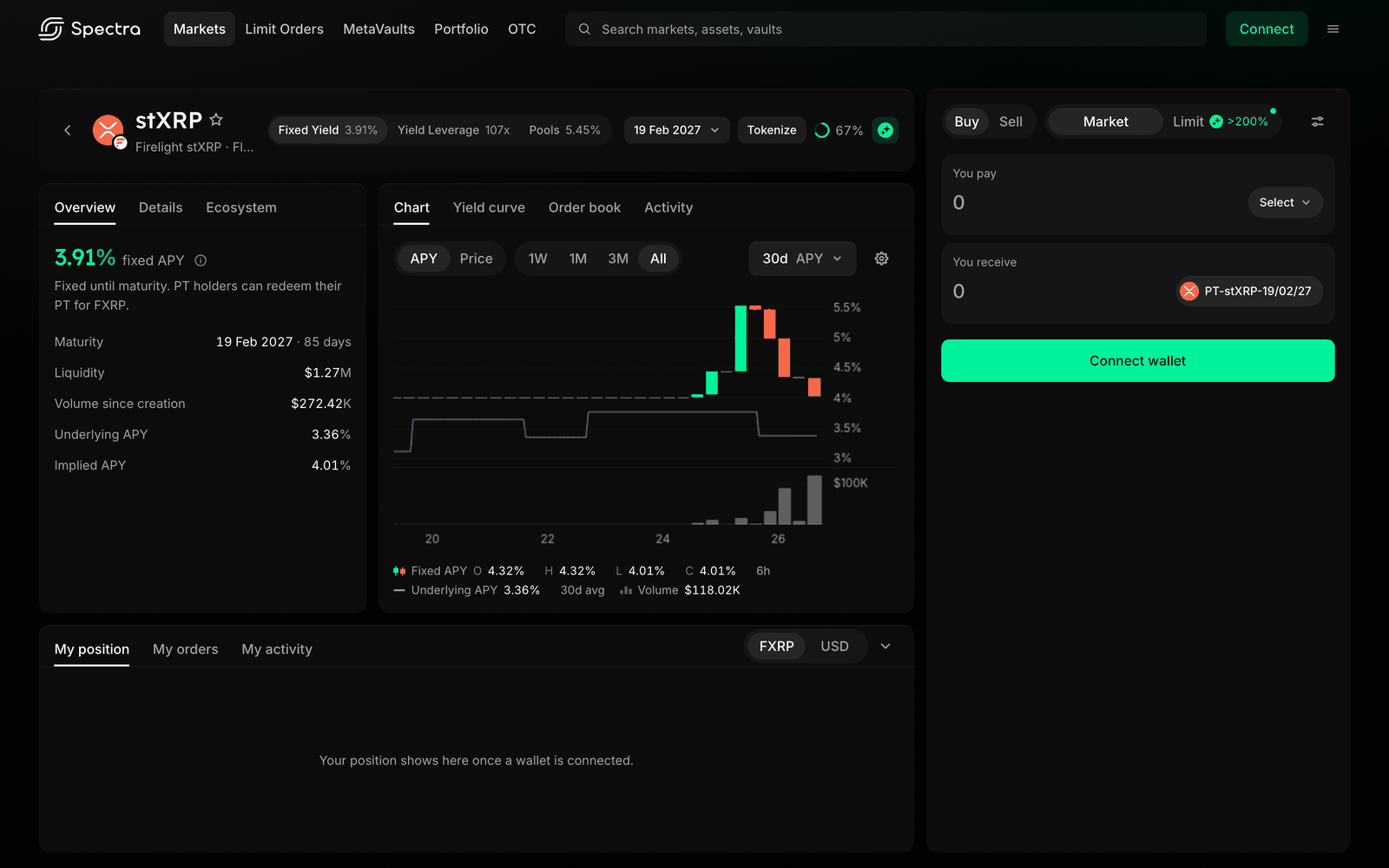
| Area | What it contains |
|---|---|
| Market bar | The strategy tabs Fixed Yield (PT), Yield Leverage (YT) and Pools (LP) with their current rate, the maturity menu, Tokenize, and badges for limit order rewards and deposit capacity. |
| Left panel | Overview with the rate, maturity, liquidity, volume, underlying APY and implied APY. Details lists the market's contracts and parameters. |
| Centre panel | Chart, Yield curve, Activity and, on markets with an order book, Order book. |
| Trade panel | Buy or Sell on Fixed Yield and Yield Leverage, with Market and Limit where limit orders are available. Add or Remove on Pools. |
| Lower panel | My position, My orders and My activity for the connected wallet. |
The deposit capacity ring appears when the interest-bearing token's vault has a deposit cap. It shows how much of that cap is used; select it to see the amounts. It turns amber from 80% and red from 95%. A full vault cannot accept deposits that convert into its token.
Switch maturity
Open the maturity menu beside the market name. It lists the market on screen under Now viewing, later markets you can move into under Roll over to, and Other maturities. A matured market appears there only if your wallet holds a position in it.
Rates near maturity
In a market's last two days, the displayed fixed APY, implied APY and yield leverage come from its order book rather than its pool. If the book has no orders, these figures show "–" and the headline reads No orders yet. The trade panel still quotes your own trade from the available liquidity.
Settings
Open the menu at the right of the top bar and choose Settings to set default Swap slippage and Deposit slippage, and to hide Portfolio positions worth less than $1. The slippage button in a trade panel overrides the default for that transaction only.
The previous version of the app remains available from the same menu under Legacy app.